


When you log in to ProjectControls.online, the CPM (Critical Path Method) Files section is where you’ll land, providing a familiar and intuitive experience with the updated file structure. The area you’re in is highlighted yellow on the left-hand sidebar.
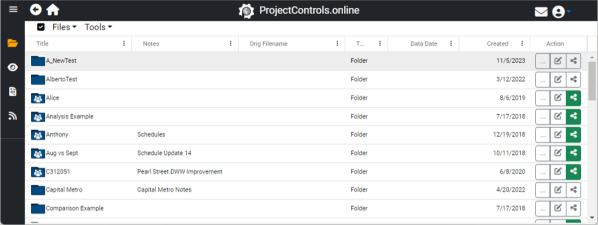
CPM Files Menu Bar:

In the Files dropdown menu, you’ll find standard features such as Upload File, Add Folder, Refresh Data, and PC.o Connect (currently unavailable). PC.o Connect facilitates connections to Autodesk, Procore, P6 Online, and MSP Online products.
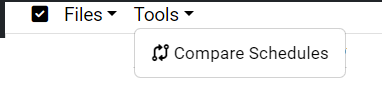
Under Tools, the Comparison Schedules button enables you to select two schedules for comparison, with results appearing in the Reports section (accessible through the Report icon on the sidebar).

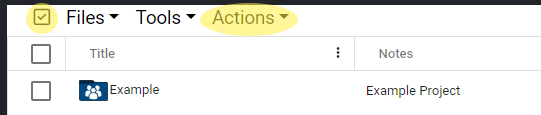
A hidden menu, “Actions,” appears when you click the checkmark in the upper left corner. These Actions empower you to perform actions on multiple selected files/folders: Delete, Move, and Download. Download archives selected data, maintaining the folder structure.
Individual Folder/File Actions:
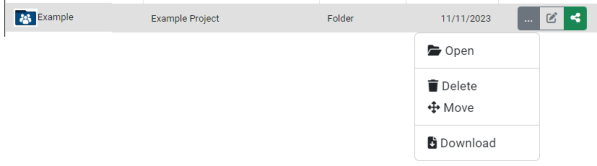
Actions for individual folders and files have been relocated to the right, with most now accessible through dropdown menus.
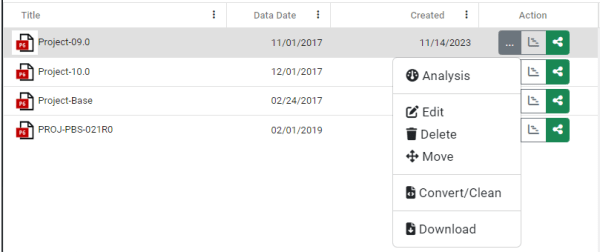
Traversing the file structure is made easy by double-clicking files or opening analyses. A breadcrumb at the upper-right displays your current location in the file structure, enabling quick navigation.
Sharing and Editing:

Sharing files and folders remains consistent with the original website. Sharing a file provides a link for viewing the Gantt chart, while sharing a folder grants access to all the files in the folders on ProjectControls.online based on specified permissions.

The Edit button allows you to modify filenames or add notes for better organization, especially when dealing with similar filenames, resubmittals, unapproved files, or other categorizations.
Downloading and Converting:
To simplify, Downloading and Converting files have been separated. Converting between XER and MPP, or cleaning an XER file, operates similarly to before. More schedule file support types are on the horizon. Download simply retrieves an archived version of the original file.
Gantt Viewer:

The Gantt viewer opens the Gantt view of the schedule in a separate tab. This allows the user access to multiple schedules simultaneously. More on the viewer will be in a separate post.

Analysis:
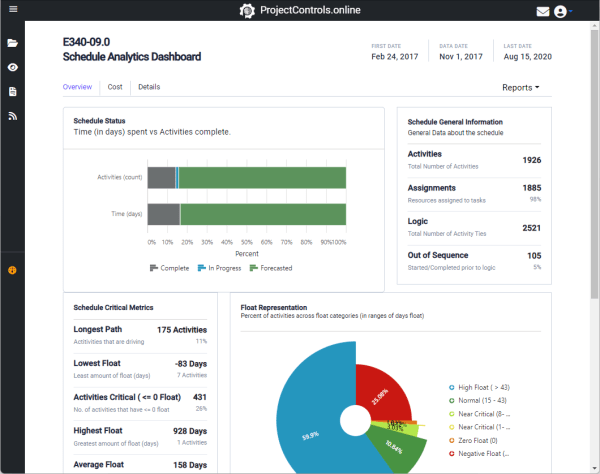
You can access schedule analysis either by double-clicking the schedule file or selecting Analysis on the menu on the side of the file. More on Analysis will be in a separate post.
 ProjectControls.online
Leave a comment