


Introduction
ProjectControls.online provides an opportunity to upload Excel-based Look Ahead files for analysis and comparison to each other and a CPM schedule. Look Ahead files typically more detailed manual work activities and cover shorter time periods (e.g., 3 weeks ahead and 1 week back). Comparing one, and/or multiple, Excel Look Ahead files to a CPM schedule (updated monthly) can be very time-consuming. ProjectControls.online transforms this task into a matter of seconds, providing clear and concise reports on aberrations. The goal is to assess the accuracy of the CPM schedule concerning on-site activities, aiding in delay claim analysis and ensuring a single, accurate schedule reflects fieldwork.
Quick note: As many would guess, to create the comparison, the Excel Look Ahead line item must have the corresponding CPM Activity ID. It is understood that that there will be many Look Ahead line items with the same ID as the look ahead is more detailed.
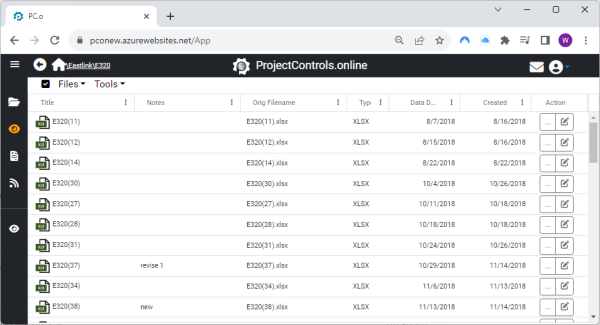
After you log in, on the sidebar, you’ll notice the Look Ahead Folders icon, represented by an eye. The file/folder structure mirrors that of the CPM files, ensuring easy navigation. Double-clicking a file opens the editor for the Look Ahead section.
We have 3 instructional videos covering this as well:
How it Works:
- Look Ahead files can vary significantly between contractors. ProjectControls.online attempts to accommodate these variations during import and conversion for effective comparison.
- CPM Schedule ID: To compare Look Aheads to a CPM schedule, ensure the CPM Schedule ID field is included in the Look Ahead. While Look Aheads can be compared to each other without it, this field is critical for CPM schedule comparisons.
- Templates: When you have successfully imported a single look ahead, you can save that process as a “template”. You can then assign that template to all remaining look aheads.
- Comparison Tools: Choose either to compare a look ahead to a previous look ahead (via Tools dropdown). Or compare one or multiple look aheads to a CPM schedule (via checkmark and Actions dropdown).
Reporting Types
There are two type of reports:
- Compare a look ahead to another look ahead
- Compare one or multiple look aheads to a CPM schedule.
Report Comparison Types
Important Definition: Date Range – the range of dates represented by the look ahead ( e.g. – 1 week back, 3 weeks forward). When it is multiple look aheads, the date range represents the earliest date to the latest date of the list of look aheads.
- Matching activities in Date range
- Activities that match and are in the date range of the look aheads (using the earliest date of the first look ahead and the latest date of the last look ahead)
- Matching activities outside Date Range
- Activities that match but are not in the above range of the look aheads.
- CPM Activities not listed
- CPM activities that are in the look ahead date range, but are not shown on the look ahead
- Non-Matching Look Ahead Activities
- Look ahead activities that do not have a corresponding CPM schedule activity
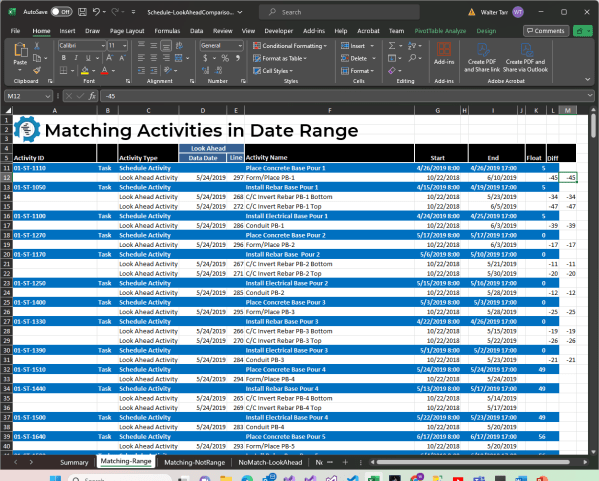
All of the reports contain the look ahead data date and excel line item for easy reference.
Summary
ProjectControls.online is here to help projects, project managers, and schedulers. PC.o is designed to take labor intensive tasks and significantly reduce the effort and time so that the project can be managed affectively and efficiently. By efficiently importing and comparing look aheads to each other and the schedule, the project can easily maintain a clear as-built schedule. However, not only can PC.o compare look aheads, by using the Gantt viewer PC.o can also create Excel look aheads from the CPM schedule. Helping teams start the process of communicating the progress.
 ProjectControls.online
Leave a comment